Updating your Moku to access new instruments or to repopulate missing instruments after an update
What to do when you purchase an instrument on your Moku device and it does not show up in the instrument list

Written by Paul Cracknell
Updated at December 16th, 2025
-
Moku:Go
Moku:Go General Moku:Go Arbitrary Waveform Generator Moku:Go Data Logger Moku:Go Digital Filter Box Moku:Go FIR Filter Builder Moku:Go Frequency Response Analyzer Moku:Go Logic Analyzer & Pattern Generator Moku:Go Oscilloscope & Voltmeter Moku:Go PID Controller Moku:Go Spectrum Analyzer Moku:Go Waveform Generator Moku:Go Power Supplies Moku:Go Lock-in Amplifier Moku:Go Time & Frequency Analyzer Moku:Go Laser Lock Box Moku:Go Phasemeter
-
Moku:Lab
Moku:Lab General Moku:Lab Arbitrary Waveform Generator Moku:Lab Data Logger Moku:Lab Digital Filter Box Moku:Lab FIR Filter Builder Moku:Lab Frequency Response Analyzer Moku:Lab Laser Lock Box Moku:Lab Lock-in Amplifier Moku:Lab Oscilloscope Moku:Lab Phasemeter Moku:Lab PID Controller Moku:Lab Spectrum Analyzer Moku:Lab Time & Frequency Analyzer Moku:Lab Waveform Generator Moku:Lab Logic Analyzer/Pattern Generator
-
Moku:Pro
Moku:Pro General Moku:Pro Arbitrary Waveform Generator Moku:Pro Data Logger Moku:Pro Frequency Response Analyzer Moku:Pro Oscilloscope Moku:Pro PID Controller Moku:Pro Spectrum Analyzer Moku:Pro Waveform Generator Moku:Pro Lock-in Amplifier Moku:Pro Laser Lock Box Moku:Pro Digital Filter Box Moku:Pro FIR Filter Builder Moku:Pro Phasemeter Moku:Pro Multi-instrument Mode Moku:Pro Logic Analyzer/Pattern Generator Moku:Pro Time & Frequency Analyzer
- Python API
- MATLAB API
- Arbitrary Waveform Generator
- Data Logger
- Digital Filter Box
- FIR Filter Builder
- Frequency Response Analyzer
- Laser Lock Box
- Lock-in Amplifier
- Oscilloscope
- Phasemeter
- PID Controller
- Spectrum Analyzer
- Time & Frequency Analyzer
- Waveform Generator
- Logic Analyzer & Pattern Generator
- Multi Instrument Mode
- Moku Cloud Compile
- Moku general
- LabVIEW
- mokucli
- Moku:Delta
New instruments can be added to Moku devices by purchasing them from the online store. Additionally, instruments can sometimes be removed from a Moku during a firmware update. In order to obtain these instruments to on your device, a license update may be required. Your computer or iPad must be connected to the internet in order to retrieve the license. It does not need connected to the Moku to retrieve the license.
On the Desktop app (Windows/MacOS)
In the Moku app, click the settings wheel on the bottom right of the screen and hover 'Device' then click 'Configuration'.

In the pop-up window, the 'Serial number' field will display 'Auto', enabling the automatic retrieval of configuration files for all your devices. Upon clicking the Download button, a successful download will be indicated.
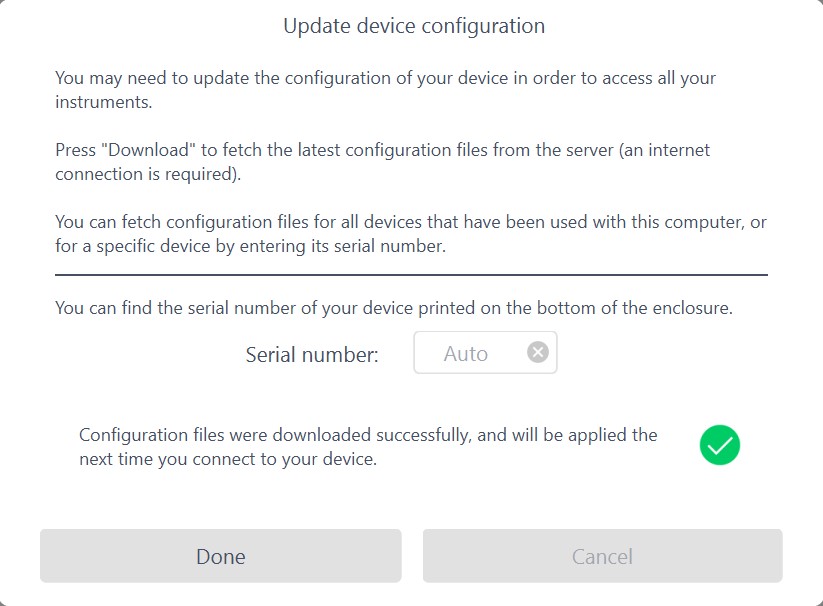
If the Moku app doesn't automatically fetch the configuration files for your device, please manually enter your Moku device's serial number and select its model (Moku:Go, Moku:Lab, Moku:Pro or Moku:Delta). Then click on the Download button. For guidance on locating the serial number, please refer to the instructions provided here.

On the iPad app
Ensure your iPad has internet access, tap the question mark on the bottom left of the screen and then tap 'Configuration'

In the pop-up window, the 'Serial number' field will display 'Auto', enabling the automatic retrieval of configuration files for all your devices. Upon clicking the Download button, a successful download will be indicated.

If Moku doesn't automatically fetch the configuration files for your device, please manually enter your Moku device's serial number and select its model (Moku:Go, Moku:Lab, Moku:Pro or Moku:Delta). Then click on the Download button. For guidance on locating the serial number, please refer to the instructions provided here.

Without an Internet Connection
The steps above require the Moku: app to be connected to the internet. If you can't connect the App to the internet, your license file can be manually loaded into your Moku. Please contact support@liquidinstruments.com with your Moku model and serial number for further instructions. Once you have obtained this license file, use the Moku app, right click on the Moku icon and select “Configure device”

Under the Device settings, navigate to the Configuration file field under the Device tab. Upload the license file and the Moku device would then configure the device with respect to the license file.

Connecting to the Moku
Once complete, you should be able to connect to your Moku and see the new instruments. The updated license is loaded onto the Moku, so you can switch between computers and iPads without changing the available instruments.