WiFi is not permitted in our lab. How can I use Moku?

Written by Paul Cracknell
Updated at March 31st, 2026
-
Moku:Go
Moku:Go General Moku:Go Arbitrary Waveform Generator Moku:Go Data Logger Moku:Go Digital Filter Box Moku:Go FIR Filter Builder Moku:Go Frequency Response Analyzer Moku:Go Logic Analyzer & Pattern Generator Moku:Go Oscilloscope & Voltmeter Moku:Go PID Controller Moku:Go Spectrum Analyzer Moku:Go Waveform Generator Moku:Go Power Supplies Moku:Go Lock-in Amplifier Moku:Go Time & Frequency Analyzer Moku:Go Laser Lock Box Moku:Go Phasemeter
-
Moku:Lab
Moku:Lab General Moku:Lab Arbitrary Waveform Generator Moku:Lab Data Logger Moku:Lab Digital Filter Box Moku:Lab FIR Filter Builder Moku:Lab Frequency Response Analyzer Moku:Lab Laser Lock Box Moku:Lab Lock-in Amplifier Moku:Lab Oscilloscope Moku:Lab Phasemeter Moku:Lab PID Controller Moku:Lab Spectrum Analyzer Moku:Lab Time & Frequency Analyzer Moku:Lab Waveform Generator Moku:Lab Logic Analyzer/Pattern Generator
-
Moku:Pro
Moku:Pro General Moku:Pro Arbitrary Waveform Generator Moku:Pro Data Logger Moku:Pro Frequency Response Analyzer Moku:Pro Oscilloscope Moku:Pro PID Controller Moku:Pro Spectrum Analyzer Moku:Pro Waveform Generator Moku:Pro Lock-in Amplifier Moku:Pro Laser Lock Box Moku:Pro Digital Filter Box Moku:Pro FIR Filter Builder Moku:Pro Phasemeter Moku:Pro Multi-instrument Mode Moku:Pro Logic Analyzer/Pattern Generator Moku:Pro Time & Frequency Analyzer
- Python API
- MATLAB API
- Arbitrary Waveform Generator
- Data Logger
- Digital Filter Box
- FIR Filter Builder
- Frequency Response Analyzer
- Laser Lock Box
- Lock-in Amplifier
- Oscilloscope
- Phasemeter
- PID Controller
- Spectrum Analyzer
- Time & Frequency Analyzer
- Waveform Generator
- Logic Analyzer & Pattern Generator
- Multi Instrument Mode
- Moku Cloud Compile
- Moku general
- LabVIEW
- mokucli
- Moku:Delta
Connecting without WiFi
Your Moku can be connected to an iPad or computer without WiFi:
- Wired ethernet
- USB, see Moku:Lab via USB and Windows or Using Moku via USB and iPad
How to disable WiFi
By default, Moku will advertise its own WiFi network and it can also connect to other WiFi networks. In order to disable both these functions, you can put your Moku in to 'airplane' mode:
Method 1: Airplane Mode
The ‘airplane’ mode button is located on the back of Moku:Pro and on the base of Moku:Lab. To disable Wi-Fi, press the recessed airplane mode button using a paperclip or a similar tool.
Moku:Delta uses an external Wi-Fi dongle, and Wi-Fi is only available when the dongle is connected to one of the USB-A ports on the back of the device.
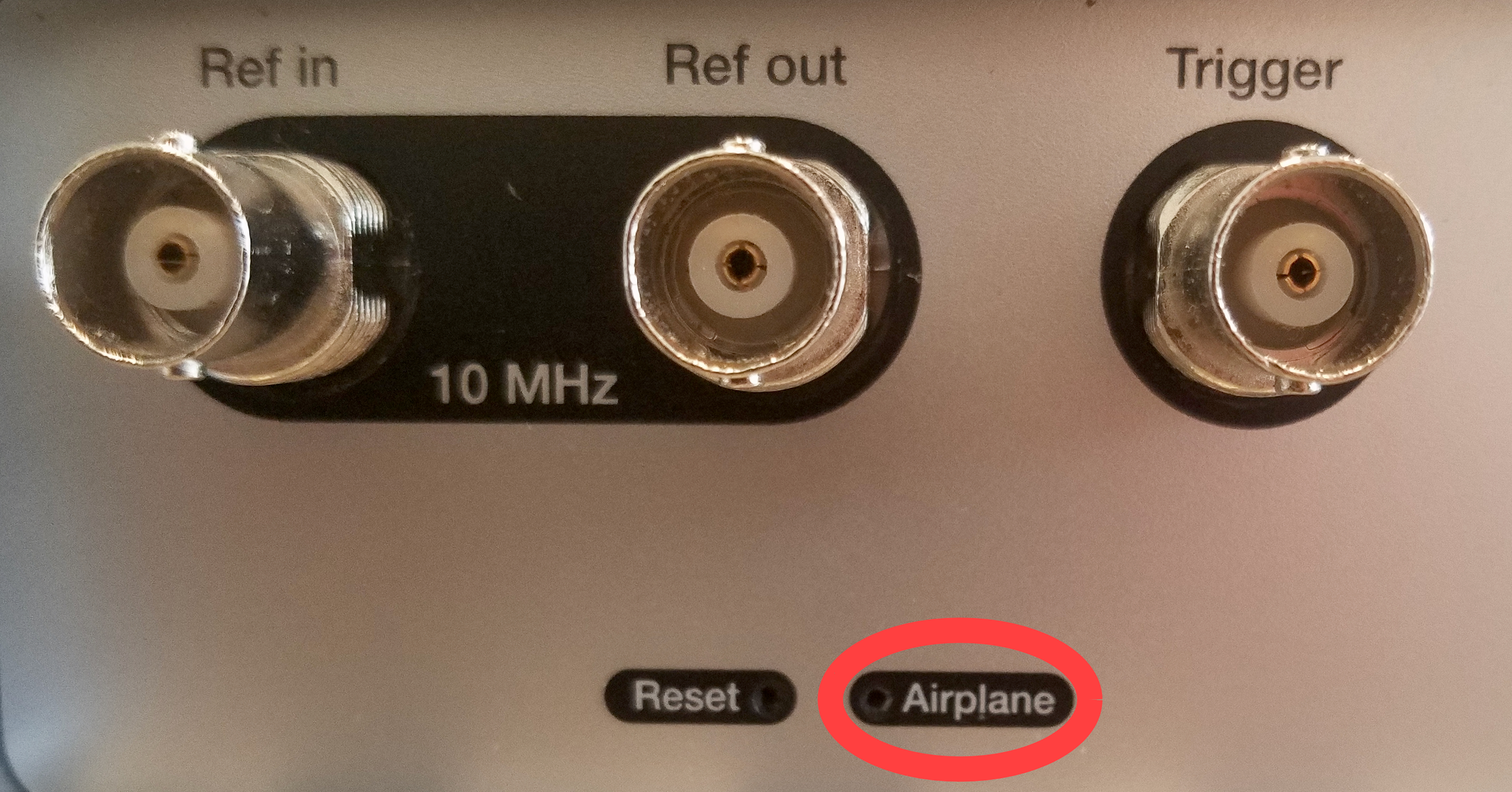 The airplane mode button on the back panel of a Moku:Pro
Method 2: Device Settings
Ensure you are not connected over WiFi while doing this.
In the Moku Desktop app, right-click on the device tile and select “Configure device” to open the Device Settings window. Under the Wi-Fi tab, deselect “Join a Wi-Fi network”, and under Access Point, deselect “Create a Wi-Fi network.”

In the Moku iPad app, select the Moku and tap on the gear icon to open up the Device settings window. Under the WiFi tab disable both “Join a WiFi network” and “Create a WiFi network”. Ensure you are not connected over WiFi while doing this!
 The WiFi settings on an iPad, showing all wireless interfaces disabled